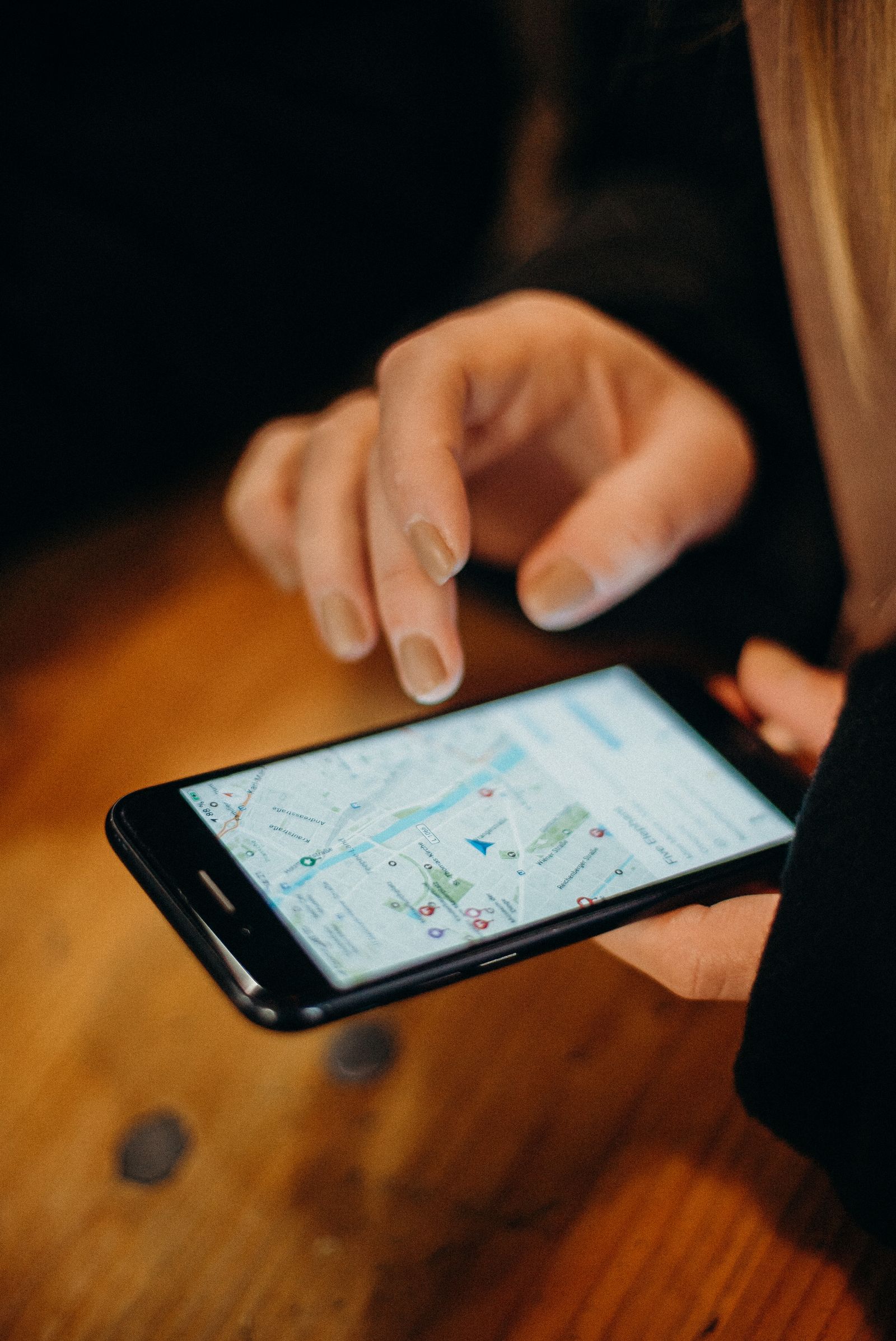
A smartphone showing a map with a location marker, the same view Find Hub uses to pinpoint a lost Android phone.
Losing an Android phone is stressful, but Google's free Find My Device service — now called Find Hub — can locate it, ring it, lock it, or erase it remotely.
Google announced the Find Hub name on 13 May 2025, and this guide explains how to set it up, find a lost phone, and protect your data step by step.
Set Up Find Hub Before You Lose Your Phone
Find Hub is usually switched on automatically when you add a Google Account to an Android phone, so most people are already protected without doing anything extra.
Still, a quick five-minute check now can save hours of panic later, because a single missing setting can stop the service from working when you need it most.
Check your Google Account: Open Settings, tap Passwords, passkeys and accounts, and confirm the Google Account shown is the one you would use to recover the phone, since Find Hub can only find devices signed in to that account.
Switch on Location: Open Settings, tap Location, and make sure Location is turned on, because Find Hub needs location services to place your phone on the map, and Google Location Accuracy improves the result where your phone offers it.
Confirm Find Hub is on: Open Settings, tap Security, then Find Hub, and check that Allow device to be located is turned on, since this single switch controls whether you can ring, locate, secure, or erase the phone remotely.
Set a screen lock: Set a PIN, pattern, or password if you do not have one yet, because offline finding through the Find Hub network only works for devices protected by a screen lock, and the lock also keeps strangers out of your data.
Choose your offline finding level: Open Settings, tap Google, then All Services, then Find Hub, tap Find your offline devices, and choose With network everywhere so nearby Android phones can help locate yours even in quiet areas.
Check the phone is visible on Google Play: Open the Google Play Store, confirm the phone appears under your devices, and remember that Find Hub also needs the phone to be signed in, switched on, and connected to mobile data or Wi-Fi before it can act.
Run through this checklist on every Android phone and tablet you own, including devices you rarely use, because the one you lose is not the one you expected to lose.
How to Locate Your Lost Android Phone
When the phone goes missing, stay calm and act quickly, because every minute matters if the battery is low, the phone is moving, or someone else has picked it up.
Open the Find Hub app on another Android phone or tablet, or visit android.com/find in any browser, then sign in with the Google Account that is on the missing phone.
Sign in and pick the device: Tap Continue as your name if the phone is yours, or tap Sign in as guest to help a friend, then select the missing phone from the device list and wait for its location to appear on the map.
Check the timestamp first: Read the time shown next to the location pin before you act, because the map shows the last successful report rather than a live feed, and an old timestamp means the phone may have moved since then.
Get directions when the location looks right: Tap Get directions to navigate to the pin, and remember that the location is estimated from GPS, Wi-Fi, and mobile signals, so the accuracy circle shows how precise the reading really is.
Use Find nearby at close range: If the phone is within about 10 metres, tap Find nearby and follow the shape that fills in as you get closer, which helps when the phone is hidden under a sofa cushion or inside a bag.
If Find Hub asks for the phone's lock screen PIN, enter it to continue, since Android 9 and newer devices use that check to confirm you are the rightful owner.
If the map points to a stranger's home or another unsafe place, do not go there yourself. Contact your carrier and local police instead.
How to Ring Your Phone
If the phone is probably nearby — at home, in the office, or in the car — ringing it is the fastest option available.
It works even when the phone is set to silent or vibrate, which is exactly the situation where calling the number from another phone fails to help.
Open Find Hub and select the phone: Sign in at android.com/find or open the Find Hub app, choose the missing phone from your device list, and wait until the map and the action buttons appear on the screen.
Tap Play sound: Tap Play sound and listen carefully, because the phone will ring at full volume for five minutes, giving you enough time to search the room, the car, or the bag it is hiding in.
If you hear nothing after five minutes, tap Play sound again or move to the lock step below, because the phone may be somewhere you cannot hear it from.
How to Lock Your Phone and Leave a Message
If the phone is somewhere you cannot reach, or theft is possible, lock it promptly so nobody can open your apps, read your messages, or use your saved accounts.
Tap Mark as lost: Open Find Hub, select the missing phone, tap Mark as lost, then tap Next to start the locking process, which secures the phone with your existing PIN, pattern, or password.
Add a message and contact details: Type a short message for the lock screen, such as This phone is lost, please call me, and add a phone number or email address you can actually reach right now.
Confirm the lock: Tap Mark as lost to finish, and the phone will lock immediately, show your message on its screen, and require your PIN, pattern, or password before anyone can use it again.
Use a contact method you can reach today, because posting only the missing phone's own number leaves a finder with no way to call you back.
On phones running Android 17 or later with fingerprint or face unlock, Find Hub can add an extra verification step when the phone is marked as lost.
How to Erase Your Phone as a Last Resort
Erase the phone only when recovery looks unlikely and your private data matters more than the device itself, because this step permanently deletes everything stored on the phone.
Open Find Hub and select the phone: Sign in at android.com/find or open the Find Hub app, choose the missing phone, then open Settings inside Find Hub to reach the erase option for that device.
Tap Factory reset and confirm: Tap Factory reset, confirm the action, and sign in again if asked, because Google wants to be sure the erase request really comes from the phone's owner.
The phone will erase itself the next time it comes online, so an offline phone will wait until it reconnects, and you should keep checking Find Hub for the result.
After the reset, the phone no longer appears in Find Hub, so you cannot locate it again, and anyone setting it up will need your Google Account password first.
Note that the erase may not delete an SD card, so remove sensitive files from removable storage if you ever recover the phone or hand it to someone else.
How Offline Finding Works
The Find Hub network can locate some phones without their own data connection, because nearby Android devices detect the lost phone over Bluetooth and relay its encrypted location to you.
Your phone stores encrypted recent locations with Google by default and joins this crowdsourced network, so other Android phones can help find yours while your own location stays private.
The network offers four levels, and the right choice depends on how much help you want: Off, Without network, With network in busy places only, and With network everywhere.
Choose With network everywhere for the best chance of recovery, since it lets the network help in quiet and remote areas too, not just in airports and busy streets.
For supported phones, such as the Pixel 8 series, the network can still locate the phone for several hours after the battery runs out or the phone is switched off.
Keep Bluetooth and Location switched on when the phone shuts down, because the powered-off signal depends on them, and a phone with both switched off cannot be found this way.
Tips to Protect Your Phone Before It Goes Missing
The best time to prepare is while the phone is still in your hand, so work through these habits now and repeat them whenever you buy a new Android phone.
Back up your data regularly: Turn on Google backup for photos, contacts, and settings, because a phone you recover with a dead battery or a cracked screen is useless if its data is gone for good.
Write down your IMEI number: Dial *#06# or check the original box, save the number somewhere safe, and give it to your carrier and the police if the phone is stolen, so they can block it.
Keep your Google Account password safe: Store the password in a password manager you can open from another device, because losing the phone and forgetting the password at the same time locks you out of Find Hub too.
Add a lock screen message: Put an alternate contact number on your lock screen today, so an honest finder can reach you even before you open Find Hub to mark the phone as lost.
Know your carrier's blocking options: Ask your carrier how to suspend the line and block the IMEI, because a quick call can stop thieves from using your number for calls, texts, or verification codes.
After You Recover Your Phone
Change your Google Account password and review recent account activity first, because a stranger may have seen notifications or tried to open apps while the phone was missing.
Then check that Find Hub is still switched on, your screen lock still works, and your backup is current, so the next loss is just as easy to handle.
Frequently Asked Questions
Can I find my Android phone if it is switched off?
Sometimes, because supported phones such as the Pixel 8 series can be found for several hours after switching off.
Other phones can only show their last known location from when they were last online.
Keep Bluetooth and Location switched on before the battery dies to give powered-off finding its best chance of working.
Is Find Hub free to use?
Yes, Find Hub is free for Android users, and you only need a Google Account, the Find Hub app or a browser, and a phone that meets the basic requirements.
Can I find someone else's lost Android phone?
Yes, open the Find Hub app, tap Sign in as guest, and let your friend sign in with their own Google Account to locate, ring, or lock their phone.
If you manage a Google Account with Family Link, your child's supervised devices appear automatically in the Family devices tab of Find Hub.
What should I do if Find Hub shows no location?
First check that the phone has power, is connected to mobile data or Wi-Fi, is signed in to your Google Account, and has Find Hub switched on.
If the phone is offline, Find Hub can only show its last known location, so wait and check again later, or try the offline finding options in Settings.
Does erasing my phone remove it from Find Hub forever?
Yes, after a factory reset the phone no longer appears in Find Hub, so erase it only when you are sure recovery is unlikely and your data needs protection.
You will still need your Google Account password to set the phone up again, which stops a thief from simply resetting it and using it as their own.
Can Find Hub find my earbuds or tracker tag too?
Yes, Find Hub also works with compatible Fast Pair accessories, such as supported earbuds, and tracker tags you attach to wallets, keys, or bikes.
Open the app, pick the accessory from your device list, and use the same map, ringing, and last-known-location tools to track it down.
Set up Find Hub today while your phone is safe in your hand, because five minutes now can save your photos, your accounts, and a great deal of stress later.